Ready to dive into the world of the Too Good To Go app but feeling a bit overwhelmed? Fear not! In this comprehensive guide, I’ll take you through each feature and function step by step. By the time you finish reading, you’ll be a seasoned pro at navigating the Too Good To Go app, ready to unlock its full potential and start saving on surplus food like a champ!
What is Too Good To Go app?
The Too Good To Go app is a platform designed to combat food waste by connecting consumers with local businesses that have surplus food at the end of the day. Users can browse listings from restaurants, bakeries, supermarkets, and more, and purchase “surprise bags” of food at heavily discounted prices. The app can be downloaded from App Store and Google Play. If you want to learn more about the best ways of using it, make sure to read my recent post.
How to use the Too Good To Go app?
In the illustrated guide below, you can find detailed information about all the sections in the Too Good To Go app.
Discover Tab
How to find the Discover tab in Too Good To Go app?
You can access the Discover section by clicking on the Discover button at the bottom left corner.
How to use the Discover tab and what does it show?
In this tab you can browse all the currently available bags in your area. If there are many bags, they might be divided into sections e.g. “Recommended for you” or “Vegetarian”.
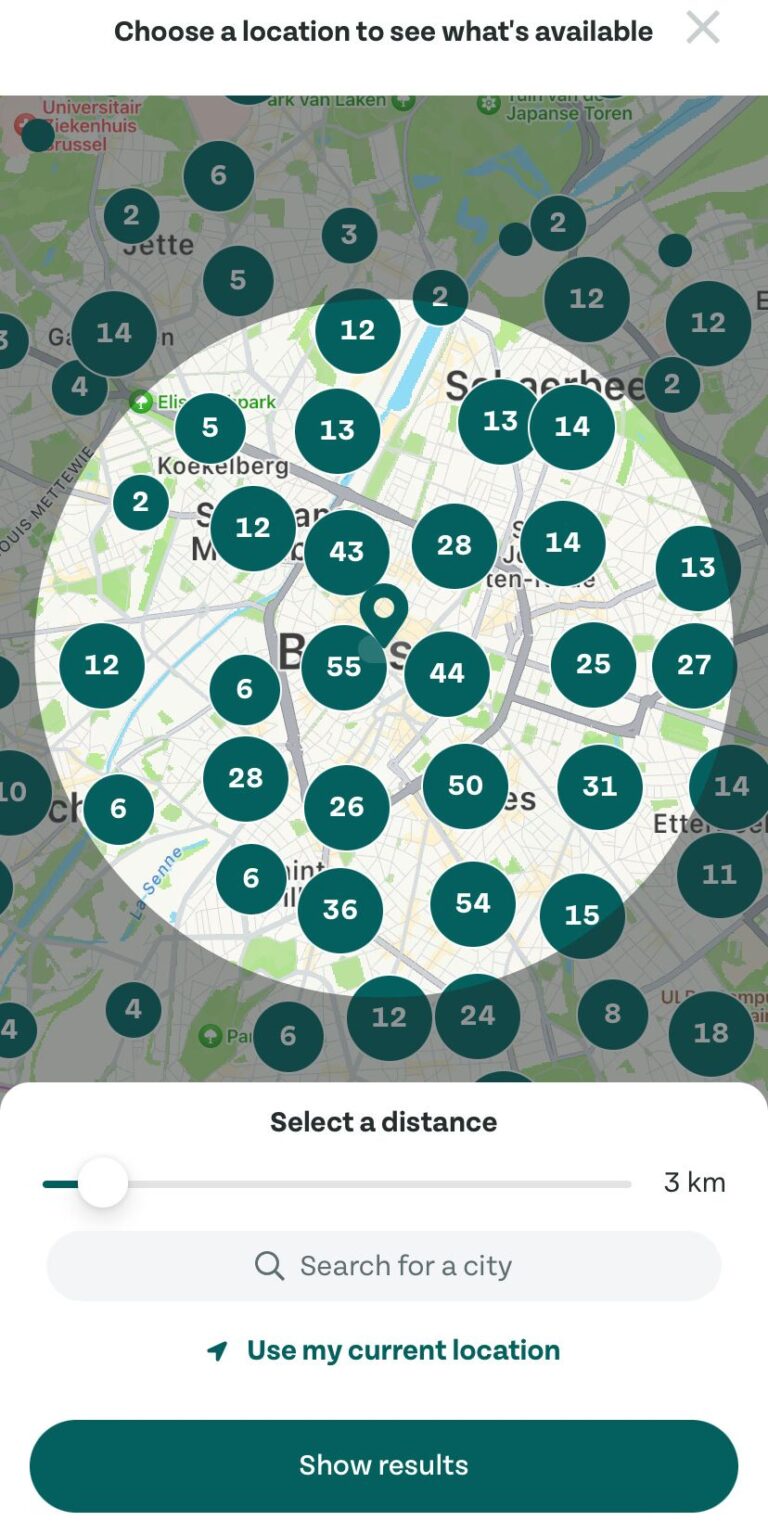
How to change the location and search distance in the Too Good To Go app?
Clicking the top element in the Discover tab opens a window to adjust your search location. Grant the app permission to access your location, then select “Use my current location” for local searches. Alternatively, type a city name into the Search bar to explore other areas. Note that specific addresses cannot be searched.
To change the search distance, move the slider located above the search bar and adjust to desired distance. Minimum is 1 km and maximum is 30 km. I recommend setting it to no more than 3 km, unless you have a car.
Browse Tab
How to find the Browse tab in Too Good To Go app?
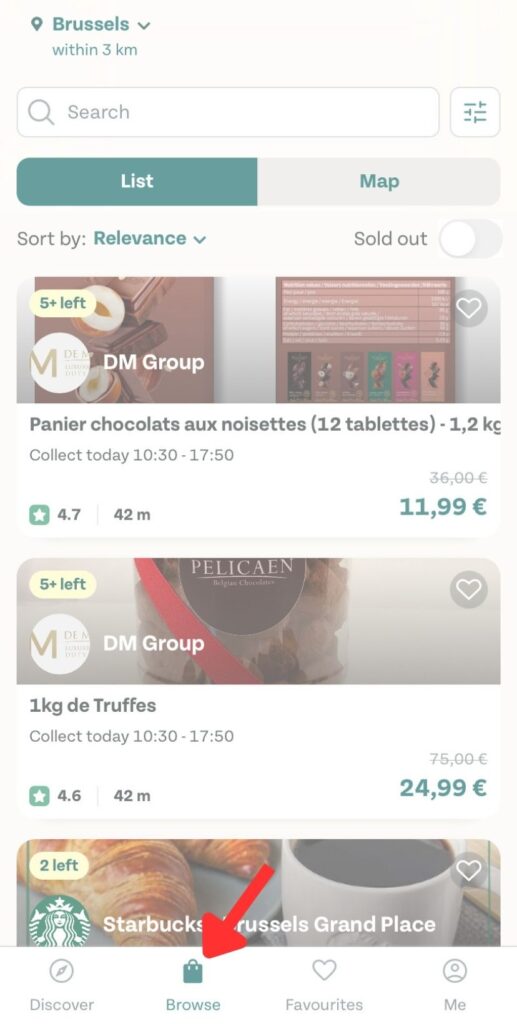
To access the Browse section, simply tap on the Browse button located at the bottom of the screen. It is positioned to the right of the Discover tab.
How to use the Browse section and what does it show?
Similar to the Discover tab, the Browse tab displays available food bags, but with a slight difference in sorting. Here, bags are organized based on relevance, typically indicating proximity. You can adjust the sorting criteria by accessing the “Sort by” section. Additionally, You can switch to the “Map” view, but I found it less useful than the default list.
How to find a sold out Too Good To Go bag in the app?
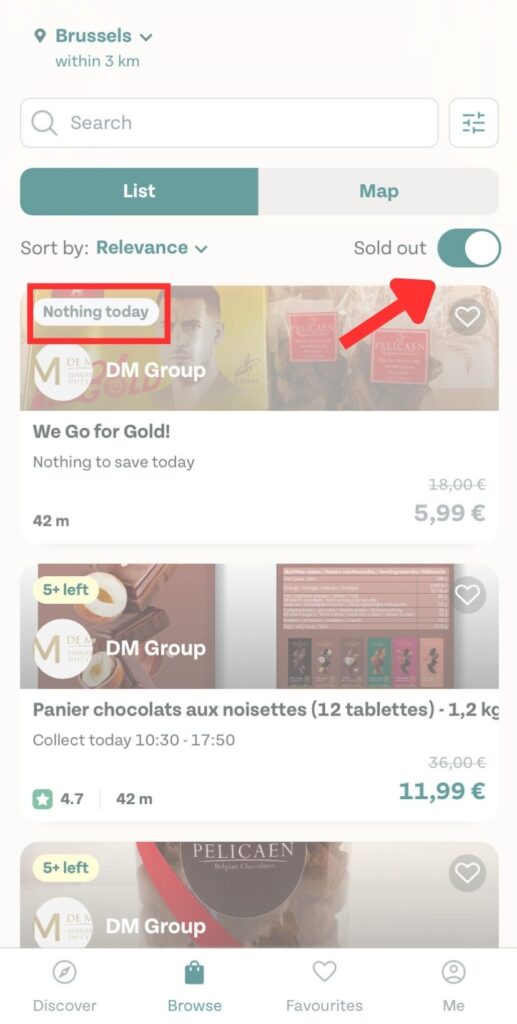
You may find yourself searching for a bag, that is already sold out, to add it to your favorites and then snatch it the moment it comes up again. You may do so by switching the “Sold out” button on. It will display all the sold-out and previously offered bags in your area.
How to filter the bags in Too Good To Go app? How to find a vegan or vegetarian bag in Too Good To Go app?
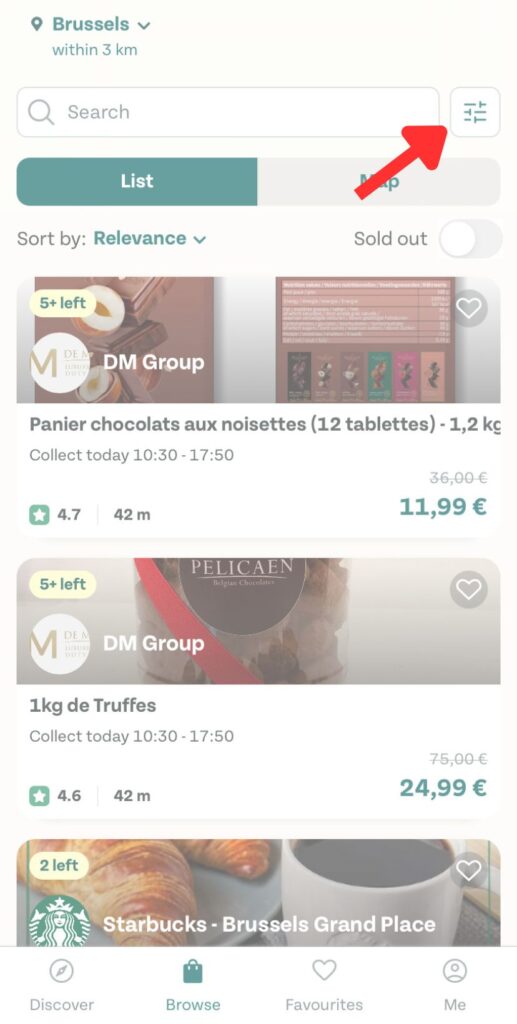
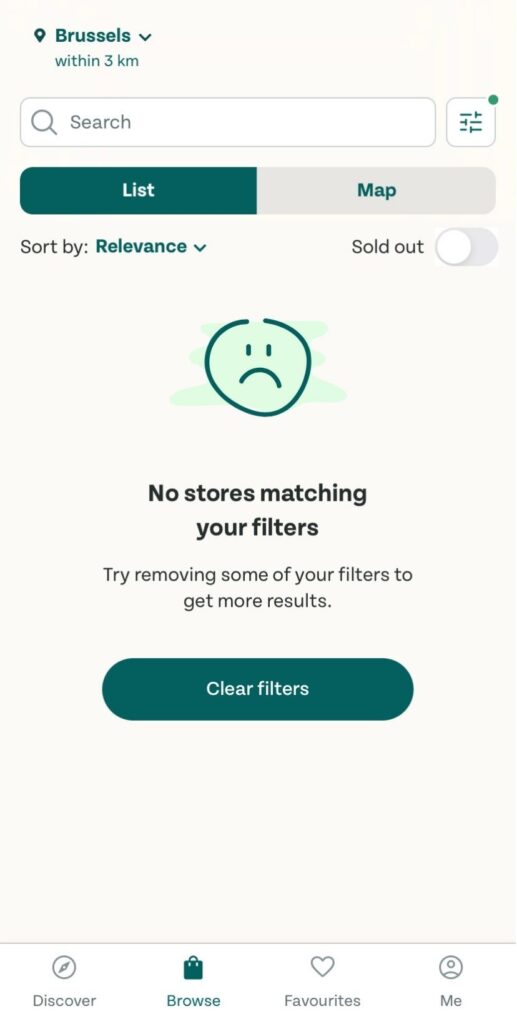
To filter bags based on your preferences, simply tap on the small icon located above the “Map” button (indicated below). This will open the Filters window, allowing you to specify your desired criteria for the bags you’re searching for. However, be cautious not to make your search criteria too narrow, as it may result in no matching stores being found.
Filtering out the bags
Individual Tab
What to check before purchasing a Too Good To Go bag?
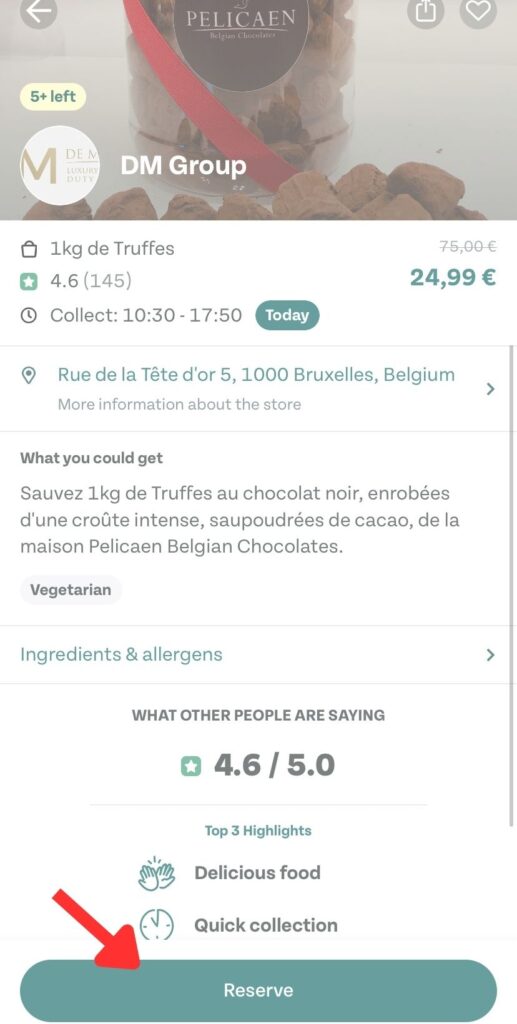
Check if the bag has a high score, as it means that many people liked the contents of bags from this store. A score above 4 can be considered good, but some places above 3 might also be worth consideration. I wouldn’t buy a bag from a store with a score below 3.Additionally, check if the store expects you to bring any extra packaging, as otherwise you may be charged extra.
How to know if I must bring an extra container for my surprise bag?
Scroll down to the bottom of the bag’s window, and the information will be given there.
How to purchase a surprise bag via Too Good To Go app?
Start by clicking on the chosen bag that you found e.g. via Discover or Browse tabs. This will take you to a window where you can purchase the bag. Make sure that you can pick up the bag at the specified time. To make a purchase click on the “Reserve” button at the bottom of the page.
Favourites Tab
How to find the Favourites tab in the Too Good To Go app?
You can access the Discover section by clicking on the Favourites button at the bottom. It is located on the left side of the Me button.
How to use the Favourites tab and what does it show?
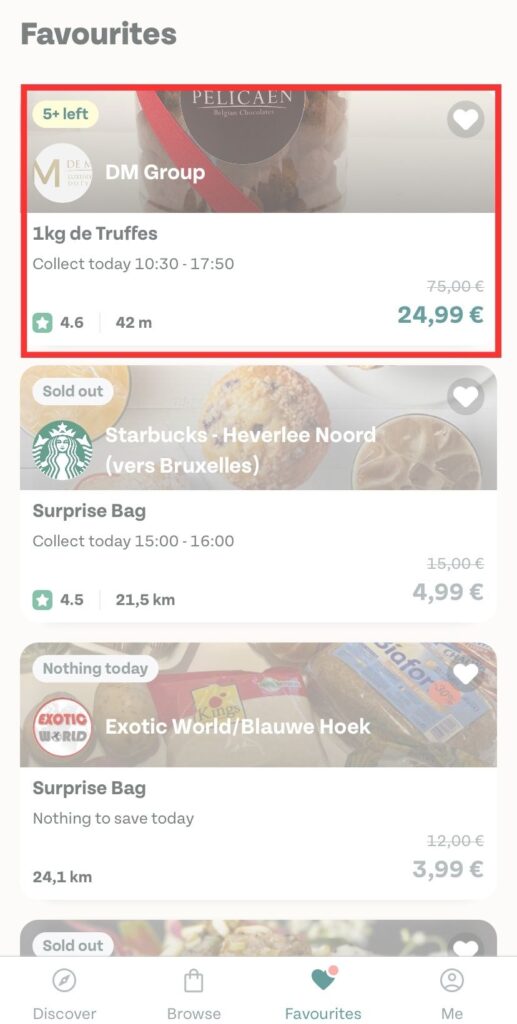
In this tab, you can save your favorite bags. This makes it easier for you to access them at any time.
All your favorite bags can be also found at the bottom of the Discover tab.
How to save a Too Good To Go surprise bag to your favorites?
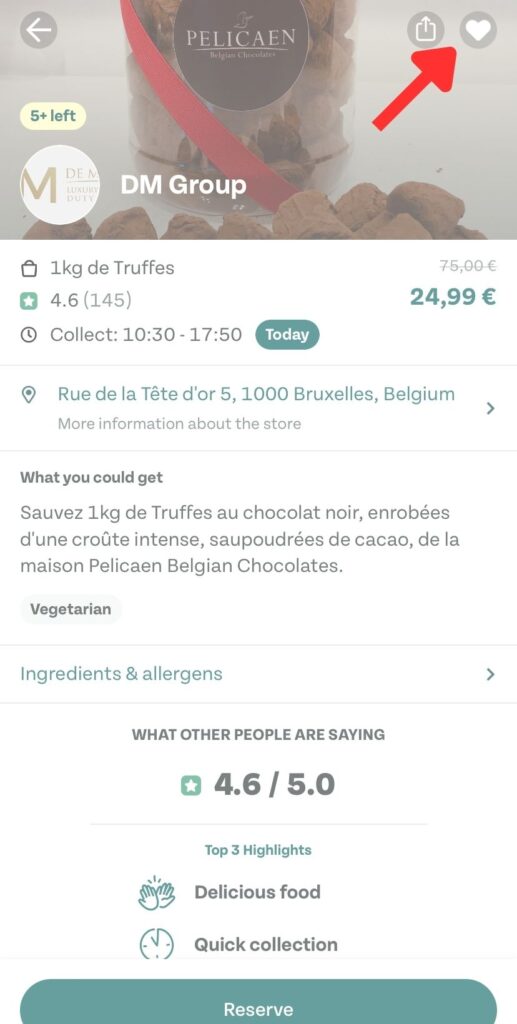
To save a Too Good To Go surprise bag to favorites, you must click on the heart icon in the bottom right corner of an individual page.
Me Tab
How to find the Me tab in Too Good To Go app?
To access the Me section, simply tap on the Me button located at the bottom right of the screen.
How to use the Me section and what does it show?
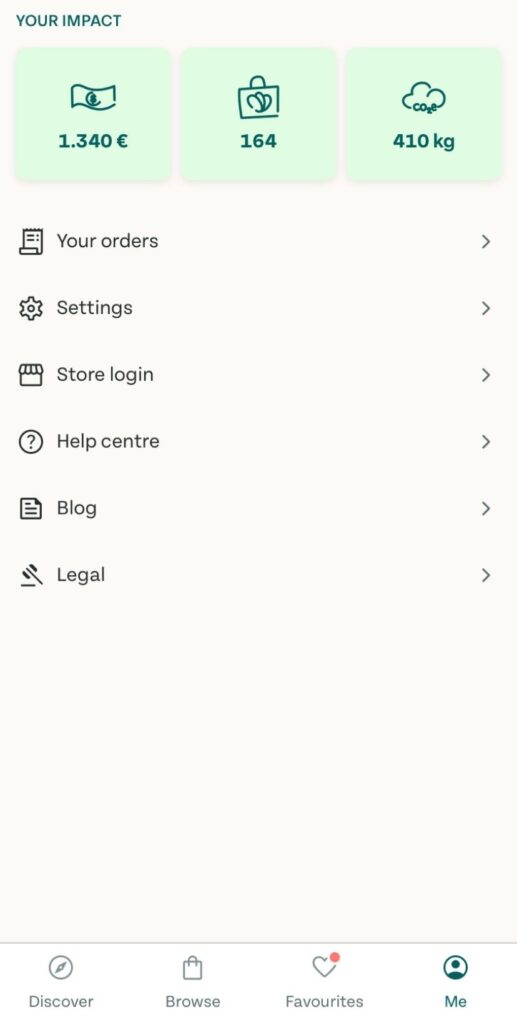
Me tab has a lot of functionalities, but you will most likely not use it much. In this tab you can:
Check your impact, meaning how much money you saved, how many bags you purchased and how much CO2 emission you avoided.
Access the list of all your previous orders, where you can cancel the order.
Access your account details (via Settings).
I hope that this comprehensive guide taught you how to use the Too Good To Go app and proved that it is very straightforward. If you have any questions, make sure to leave them in the comment section below.